Documentation
An overview of Jina, how to install and use, theme options and examples, and more.
An overview of Jina, how to install and use, theme options and examples, and more.
We would like to thank you for purchasing Jina!
This documentation file helps you to understand the whole theme concept and how it works. You should read all sections of the file before start your work. Here have multiple detailed explain of elements, theme sections and included video tutorials.
If you have any questions that are beyond the scope of this help file, please check out and search for Forum page.
After that you still can't find the solution yet, please leave a ticket on Support system then support agents help your issue asap.
Surely you have already installed WordPress on your server. If you don't installed it yet and you are new to WP and have problems installing it, you might want to check out following tips.
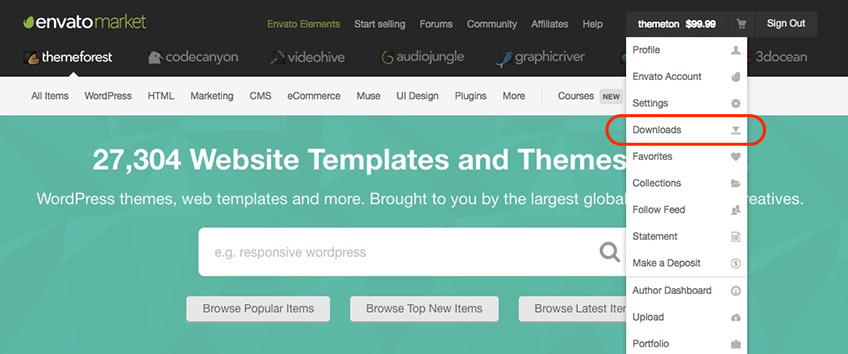
You need to download theme files after you've purchased the it. Following image describes downloads section of the item and you have 2 download choices.
Visit Downloads menu from your profile dropdown.
Please click on Download (green) button and choose your options.
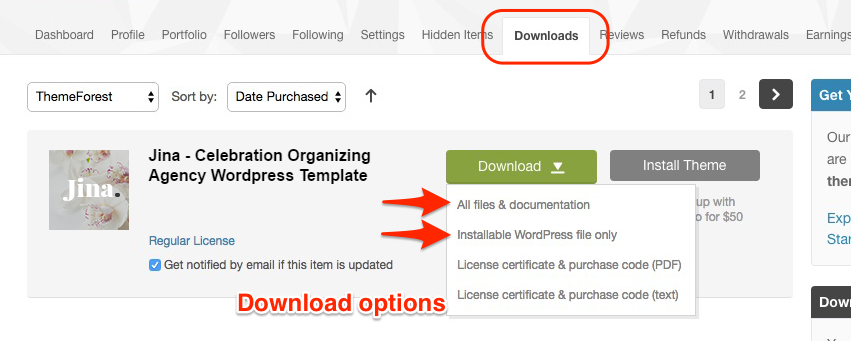
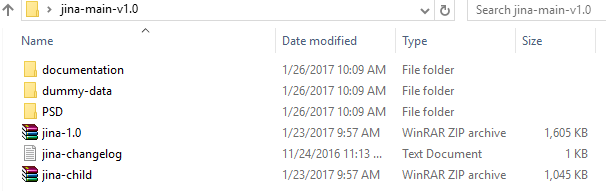
Downloading All Files gives you a all-files.zip file with all the content listed below
Downloading the installable WordPress theme only gives you the Jina.zip file.
You can either choose to upload the theme via WordPress upload function or via ftp to your site.
Appearance -> ThemesInstall Themes tabJina.zip file (it is located in the folder you've downloaded from ThemeForest).Install Now buttonNote: This is a short video instruction but prepared on a different theme. If you see here some small difference please do not pay attention on them and just focus on the steps.
wp-content -> themes directoryAppearance -> Themes of your dashboard and Activate the theme.After the activation you see this notice at top of your dashboard. This theme requires those three additional plugins and you need to install those.
Please click on Begin insalling plugins.
Note: This is a short video instruction but prepared on a different theme. If you see here some small difference please do not pay attention on them and just focus on the steps.
Envato Toolkit plugin requires MarketPlace username and API Key. You can get API key from your Settings tab of ThemeForest account. Lets provide those infomation and get theme update anytime and easily.
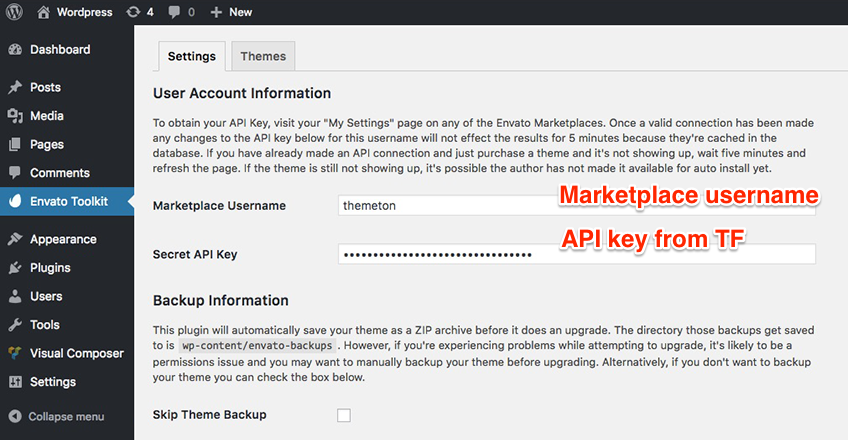
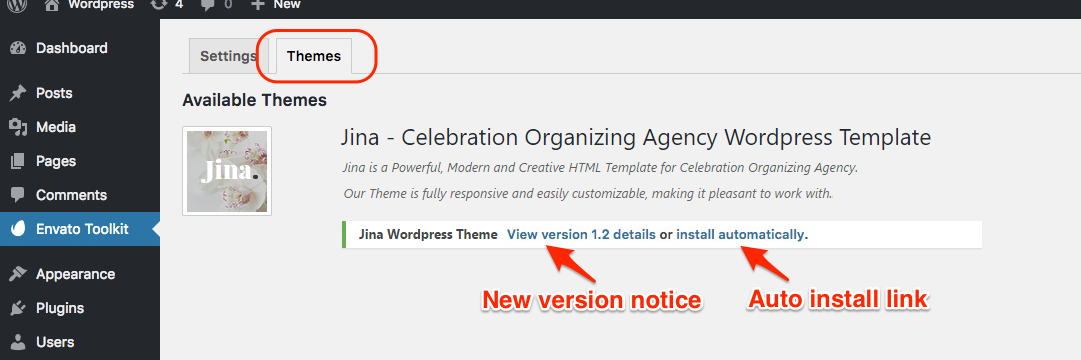
You can get latest theme version easily with this Themes section after a while.
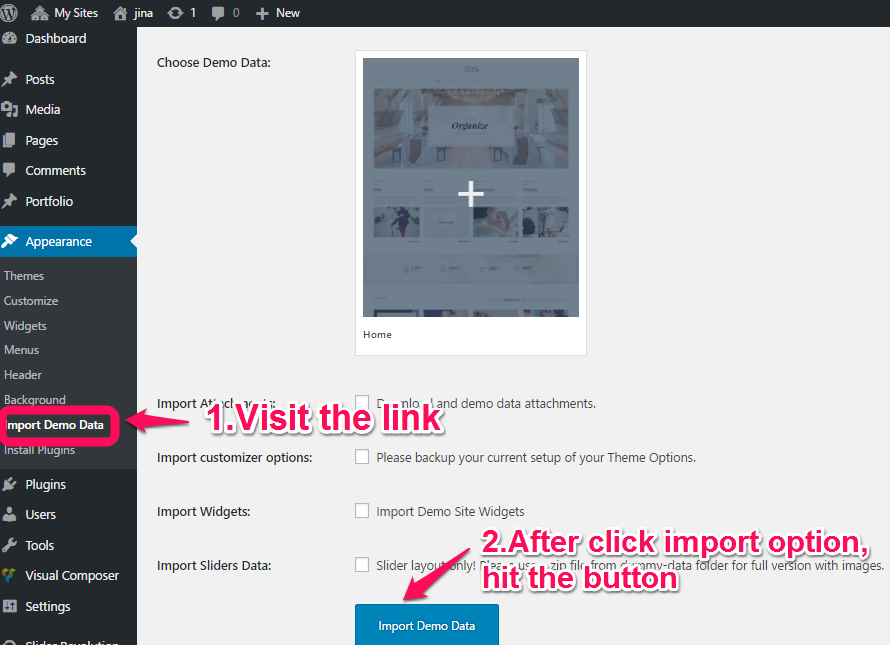
Theme has dedicated data option. You should click one of those link and select your desired Concept home page layout. Action will set a few important tasks including selection of Home page, Main navigation setting and Sidebar widgets when you click on Import Demo Data button.
Note: Please wait patiently for a while until imports all the content. Delay time is depends on your server upload speed but it won't be exceed than 2 minutes.
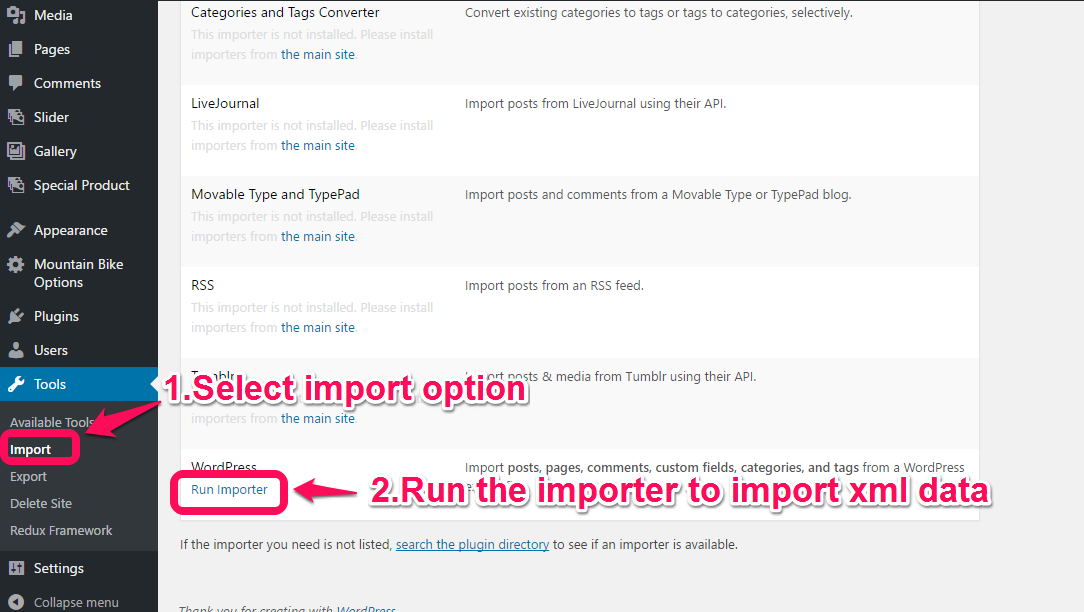
Previous option helps you to include minimized demo content on your site reason for quick include. But you can have full demo data with regular XML data imports.
Please make sure you backup your existing theme folder before updating. Additionally we recommend performing the update on a development site before making it on your live site.
Hope you have provided your account information in Envato Toolkit plugin. If you go to the Envato Toolkit => Themes page, you'll see similar to following image. Let's click on Update automatically link at right bottom. This is a most efficienat and easy way to integrate latest verion on your site.
After clicking to auto-update, you’ll see the confirmation that everything worked correctly.
Go to the Appearance => Themes and activate another theme than Jina such as TwentyTwelve, TwentyThirteen or Jina child theme. Delete the old version of the theme because folder name existing error comes up when we try to install it without deletion. Then install the theme again as you see early in this documentation.
Usually updating a theme means replacing the old files with the new ones. You can see changelog.txt file from the new download archive and you can get updated files list as modified/added and deleted. Upload and overwrite those files on your theme directory.
If theme changed lots of files and you really hard to collect changed files, there is a better way to do it when it comes to WordPress themes.
WordPress treats two version of the same theme as different themes. That is, if you have Jina v1.2 and v1.3 in your wp-content/themes folder they are treated as two different themes independent of each other.
That means you can have multiple version of the same theme installed on your blog. So whenever there is a new version of your theme available, instead of replacing or deleting the files of the older version follow this procedure.
The main advantage of following the above procedure is you can quickly switch back to the old version of the theme if you find any problems with the new version or if it clashes with any plugins you are using.
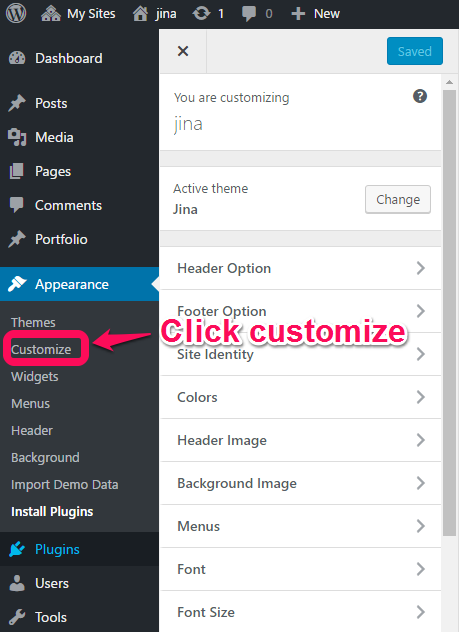
Live Customize panel has many options those help you to control your site. You have to know only where your desired options exist and how they are capable of. Please take some time to navigate through each tab and read options' description.
| Group | Class | Description |
|---|---|---|
Header Option |
Page Sub Header Background | Upload your header background image. |
| Social links | Add your social links here. | |
Footer Option | ||
| Logo | Insert the footer logo here. | |
| Footer text | You can add footer text here. | |
Colors | ||
| Header text color | Customzie header text color. | |
| Background color | Customize the body background color. | Brand Primary Color | The color that styles active menu, links & hover, pagination and much. But if the color doesn't fit for your area, you can set correct one at specific areas. Those customizations won't be overwritten by this. |
| Site logo color | ||
| Title color | ||
| Footer background color | ||
| Footer color | ||
Background image | Insert the background image. | |
Font | ||
| Title font | ||
| Logo font | ||
| Text font | ||
Content options | Content options | |
| Content Font Size | ||
| Content Text Line Height | ||
| Site logo | ||
Widgets | You can add your widgets here to sidebars and footer columns. |
You can have subscribe form by MailChimp for WordPress plugin. Install the plugin and add a widget instance on footer sidebar area.
                         <div class="contact-form">
                         <div class="row">
                           <div class="col-sm-6">
                                 [text username class:form-control placeholder "Jhon Doe"]
                           </div>
                           <div class="col-sm-6">
                                 [email email class:form-control placeholder "Your Email"]
                           </div>
                           <div class="col-sm-6">
                                 [number telephone class:form-control placeholder "Telephone"]
                           </div>
                           <div class="col-sm-6">
                                [text website class:form-control placeholder "web site"]
                           </div>
                         </div>
                        [textarea Message placeholder "Your Message"]
                        [submit class:btn-submit class:pull-right "SEND MESSAGE"]
                        </div>
Thank you to all who developed following projects/products. We really appreciate your support and time. We definitely couldn't do this template without you. We wish you all the best.
Special thanks to: